Image Magick Studio Tutorial
All of these examples cover some of the F/X properties under Distort Type at the bottom of the page at the IM Studio under the F/X tab. To use these, click on the distort button, choose your Distort Type at the bottom of the page, check reset page geometry, enter your parameters and click effect. These samples are just a small example of what can be done under each Distort Type option. Most use the Virtual Pixel Horizontal Tile.|
ARC: The parameter for this is a radius from 0-360. | |
Original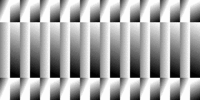
|
180 Arc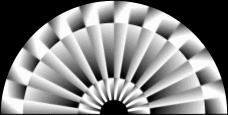 |
|
Same original with Arc set at 360 For some Virtual Pixel options you can view them from my command line tute. They are the same results. Though Horizontal Tile may be the best option Depending on your image. | 360 Arc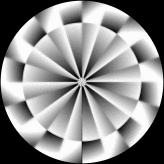
|
|
AFFINE: The parameter for this seems to take 4 numbers with the middle two being constant, 0,0 I used the virtual pixel random so you can see how it moves and the 100x100 image of the 16 balls above with parameters as below | |
-25,0,0,25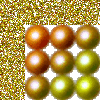
|
25,0,0,25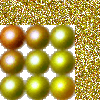
|
-25,0,0,-25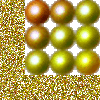
|
25,0,0,-25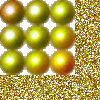
|
|
AFFINE PERSPECTIVE: The parameter for this seems to take 6 numbers the last two 0,0 will move the image off the page | |
1,0,0,2,0,0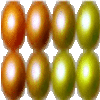 Twice the size
 |
2,0,0,1,0,0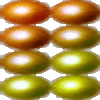 |
4,0,0,2,0,0 |
4,0,0,4,0,0
|
|
SCALE ROTATE TRANSLATE: OR SRT (SAME) The parameters for this takes 1, 2 or 4 numbers (1) the pixel 50,50 (2) scale .7=70% (3) rotate 45 (4) translate: move first pixel to pixel 50,100 Click on background under Virtual Pixel Method | |
50,50,.7,45, 50,100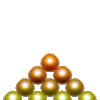 | You can also just scale and rotate .7,45 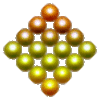 |
|
Or just rotate without scaling 45 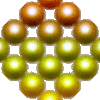 | Or scale with 0 rotation .7,0 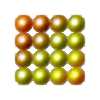 |
| You can also use SRT to make gradients just like our gradtable gradients. First make a gradient background at IM. I made this black-red, 50x50 gradient background. |  |
SRT 40 SRT 90 
|
SRT 140 SRT 180  |
|
PERSPECTIVE: The parameters for this are x1,y1,u1,v1,x2,y2,u2,v2,x3,y3,u3,v3,x4,y4,u4,v4 These are the parameters I used. 0,0,30,0,100,0,70,0,0,100,0,100,100,100,100,100 I moved 0,0 to 30,0 and 100,0 to 70,0 all other parameters remain same | |
|
Original Image is 100x100.
x1,y1 x2,y2  x3,y3 x4,y4 | Result u1,v1 u2,v2  u3,v3 u4,v4 |
|
Moved top two corners down 30 pixels and used Virtual Pixel Method Tile 0,0,30,30,100,0,70,30,0,100,0,100,100,100,100,100 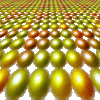 |
Same parameters with Checker Tile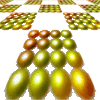
|
|
POLAR: The parameter for a circle is 0. You must use Horizontal Tile for a circle. Reset Page Geometry | |
0 with Horizontal Tile |
used a pink-red gradient 0 Horizontal Tile  |
|
DEPOLAR:
The parameter same as polar. Also has another default option of -1 | |
used 0 to turn circle back to a gradient | -1 Depolar
|
|
BARREL: The parameter is a set of 4 number (matrix applies to the x coefficient). I used Horizontal Tile for these. Reset page geometry. | |
0.2 0.0 0.0 1.0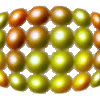 |
-0.2 0.0 0.0 1.0 |
|
You can also manipulate the Y coeficients while keeping the X constant This requires 8 numbers. The first 4 do nothing to the image | |
0.0 0.0 0.0 1.0 0.0 0.0 0.5 0.5 |
0.0 0.0 0.0 1.0 0.0 0.0 -0.5 1.9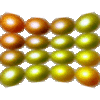 |
|
Playing with the numbers and the red ball image 2.0 2.0 2.0 4.0 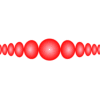 |
BARRELINVERSE0.0 0.0 -0.5 1.5 0.0 0.0 0.3 0.5 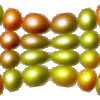 |
|
SHEPARDS: This lets you move pixels inside the image. Enter pixel x,y and new pixel x,y order I used Virtual Pixel black for these. Reset page geometry. | |
|
Pixel, new, pixel, new 40,50 20,50 60,50 80,50 |
If you move too much it moves the image pixel, move, pixel, move 40,50 20,80 60,50 80,80 |
|
Solve that problem by "pinning down" the corners pixel, move, pixel, move 40,50 20,80 60,50 80,80 pixel, same, pixel, same, etc all numbers entered at once 0,0 0,0 100,0 100,0 0,100,0,100 100,100,100,100  |
Drastic changes 10,0 90,80 90,0 10,80 0,0 0,0 100,0 100,0 0,100,0,100 100,100,100,100  |
IM Gradangles
LingoLinda.com